
Once you have setup your computer, it is important that you connect it to the College’s IT network in order to receive the latest programs and browser shortcuts. Please follow these instructions.
1. Click on Start and type “Access work or school” then click on Access work or School
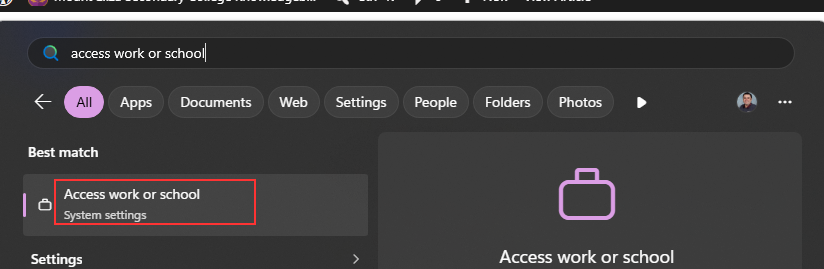
2. On the right hand side of the window, click on “Connect”

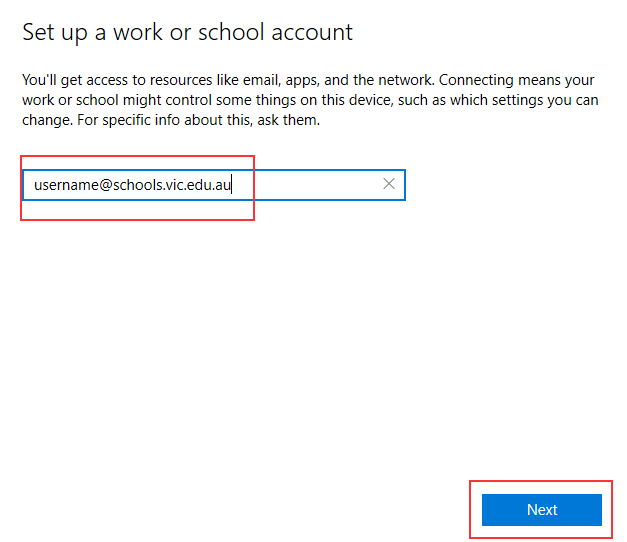
3. Type in your school email address (USERNAME@schools.vic.edu.au) then click on Next
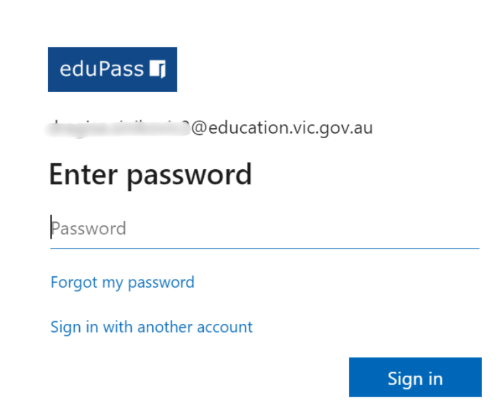
4. The eduPass login page will come up, enter your Department of Education school email address and password, then click on Sign in.
5. Once completed, click on Done, your computer has now been connected to our resources, and you will automatically receive browser shortcuts as well as applications
If you are having any issues, please email the school at helpdesk@mesc.vic.edu.au